
The SAP password asterisk option, the hidden cause of account lockouts
Why the password field on the SAP GUI login screen sometimes starts pre-filled with asterisks, how it triggers account lockouts, and how to turn the setting off.
Hi, this is Rabbit! 🐰
You’re sure you typed your password correctly, but the login fails. You try a few more times, and your account locks. You ask IT to unlock it, left wondering, “what did I even do wrong?”
In many cases, the password itself isn’t the problem. The culprit is SAP GUI’s password field placeholder setting. When it’s turned on, the password field is already full of asterisks the moment the screen opens.
The feature was built with security in mind, but in practice it removes input feedback and ends up causing more mistakes, not fewer. Good security features should let users work accurately without friction — this setting does the opposite.
- With SAP’s default setting, the password field can start pre-filled with asterisks, so you can’t tell how many characters you’ve actually typed.
- Typing your password in this state can overwrite or combine with the existing asterisks, producing a different value than your real password.
- Go to [Options] → [Interaction Design] → [Visualization 2] and uncheck “Display Placeholder Characters” to fix it.
Why the password asterisks are a problem
Most systems start with an empty password field. Each character you type adds one asterisk, so you can confirm in real time how many characters you’ve entered.
A certain SAP GUI setting changes that. The moment the login screen opens, the password field is already filled with asterisks — as if something were already typed, instead of being blank.
Typing a password in this state creates two problems.
First, you can’t tell how many characters you’ve actually entered. Even though the field is full of asterisks, there’s no way to know whether they’re what you just typed or were pre-filled.
Second, if the existing asterisks aren’t fully cleared before you start typing, your real password can mix with the placeholder asterisks, producing a value completely different from your actual password.
So even when you type the correct password, the system ends up receiving the wrong value. Repeat this a few times, and the account locks.
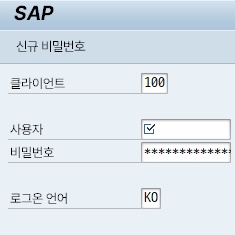 Figure 1. When the placeholder setting is on, the password field is already filled with asterisks right from the login screen
How to turn the setting off
Click the [Customize Local Layout] icon (the monitor icon) in the top right of SAP GUI and select [Options]. You can also use the shortcut Alt+F12 → O.
In the options window, go to [Interaction Design] → [Visualization 2] in the left-hand tree menu.
On the right, find “Password Field – Display Placeholder Characters” and uncheck it. Click [OK] or [Apply] to save.
The next time you open the login screen, the password field starts empty. Each keystroke adds one asterisk, so you can confirm exactly how many characters you’ve typed.
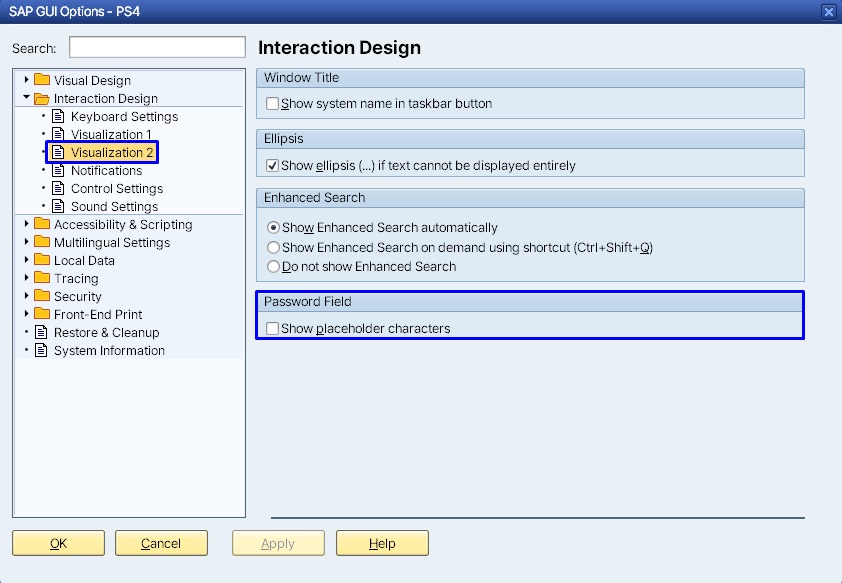 Figure 2. Uncheck “Display Placeholder Characters” under Options → Interaction Design → Visualization 2
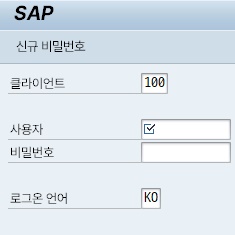 Figure 3. After turning off the setting, the password field starts empty
A related issue: switching between multiple servers
If you regularly switch between development, quality, and production servers, there’s another thing to watch for.
Each server can have a different password. With autocomplete turned on, user IDs from servers you’ve logged into before will show up in a suggestion list. If you accidentally pick an ID from the wrong server and then type your password, the login will naturally fail.
💡 Key point: If lockouts keep happening or login fails for no clear reason, check three things: whether the placeholder setting is on, whether you’re connecting to the right server, and whether Caps Lock is on.
Unlocking a locked account requires IT
Once an account is locked, you can’t unlock it yourself. You’ll need to ask your SAP authorization admin or IT support team. This is typically done through the SU01 (user management) T-code, and only system administrators have that authority.
If login failures keep recurring, it’s worth checking this setting before suspecting the password itself. In most cases, the issue isn’t a wrong password — it’s the placeholder setting, or leftover input still sitting in the field.
When you request an unlock, mentioning which server (development, quality, or production) it happened on and roughly when it started helps IT resolve it faster. Since a locked production account halts real work, it’s worth turning this setting off in advance.
⚠️ Note: This setting only applies to the SAP GUI on your own PC. Logging in from a different PC requires changing the setting there separately. If you’re using a shared company PC, check your IT policy before changing anything.
Settings worth configuring when you first get SAP
Beyond disabling the password placeholder, there are a few other settings worth setting up the first time you get SAP GUI.
Showing codes (keys) alongside dropdown lists (SAP dropdown key display), saving default values for frequently used fields (SAP user parameter IDs), and setting a signature theme (SAP signature theme) are the main ones.
Setting these up all at once when you’re getting started makes SAP much more comfortable to use afterward.
Rabbit’s Takeaway
The password asterisk setting was built to strengthen security, but in practice it causes more input errors. Without input feedback, mistakes are easy to make, and enough of them add up to a locked account.
When you first install SAP or open SAP GUI on a new PC, it’s worth checking this setting and turning it off. A 30-second fix now saves you unnecessary account lockouts and IT tickets later. 😎
Read more