
SAP T-codes: how to pull up your go-to kitchen order in one shot
The concept of SAP T-codes (transaction codes), where to enter them, the /n and /o shortcut commands, and how to set up favorites — covered from a beginner's perspective.
Hi, this is Rabbit! 🐰
The first time you use SAP, the menus feel complicated and there’s so much functionality that it’s hard to know where to start. But listen in on practitioners talking, and you’ll often hear exchanges like: “Where do I get to that screen?” “MM03.”
That short code is today’s topic: the T-code (transaction code). It’s the core tool that makes SAP work fast and accurately. Let’s cover the concept, how to enter one, shortcut commands, and favorites.
- A T-code is a shortcut command that jumps straight to a specific function or screen.
- Learn the 01 (create), 02 (change), 03 (display) numbering rule, and you’ve already mastered half of it.
- Add the
/nand/ocommands plus favorites, and your work speed picks up significantly.
What is a T-code
T-code is short for Transaction Code — a shortcut command in SAP that jumps straight to a specific function or screen. In restaurant terms, it’s like calling out “table 3!” instead of flipping through the menu page by page.
For example, to create a material you use MM01, to change one you use MM02, and to display one you use MM03. There’s a pattern in the trailing numbers.
- 01: Create
- 02: Change
- 03: Display
This pattern applies consistently across many areas — not just the material master, but also the customer master (VD01, VD02, VD03), work centers (CA01, CA02, CA03), and more. Learn this one numbering rule, and you can often guess the code for a screen you’ve never seen before.
The SAP menu is a tree structure, so clicking your way through it screen by screen gets tedious. Type a T-code into the command field, and you jump straight to that function. When practitioners talk to each other using codes — “just do that in MM02” — it’s because codes are simply faster and more precise than navigating menus.
When a T-code isn’t visible in the menu: turning on technical names
Sometimes you’ll browse the SAP menu and see only function names, with no code in sight. In that case, there’s one setting to flip: “Display Technical Names.”
- Click Extras → Settings at the top of the SAP screen.
- In the popup, check Display Technical Names.
- Save and close.
Now codes like CA01 and CA02 appear right next to the menu items. Even an unfamiliar menu instantly shows you which code it corresponds to, which speeds up learning and cuts down on mistakes.
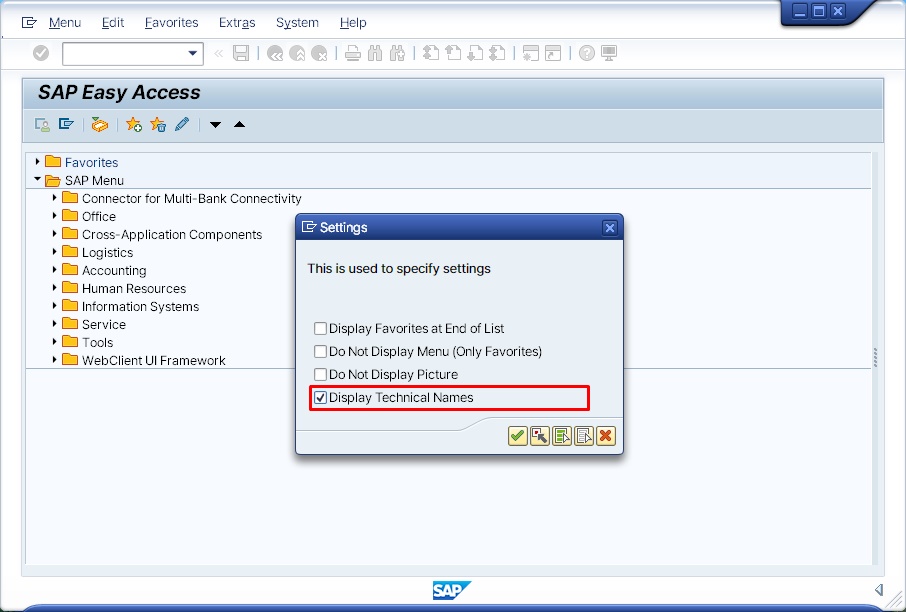 Figure 1. Turning on technical names makes T-codes appear next to menu items
Where do you type a T-code
You enter a T-code into the command field at the top of SAP GUI. Type the code into the white input box at the top of the screen, and it jumps to that screen.
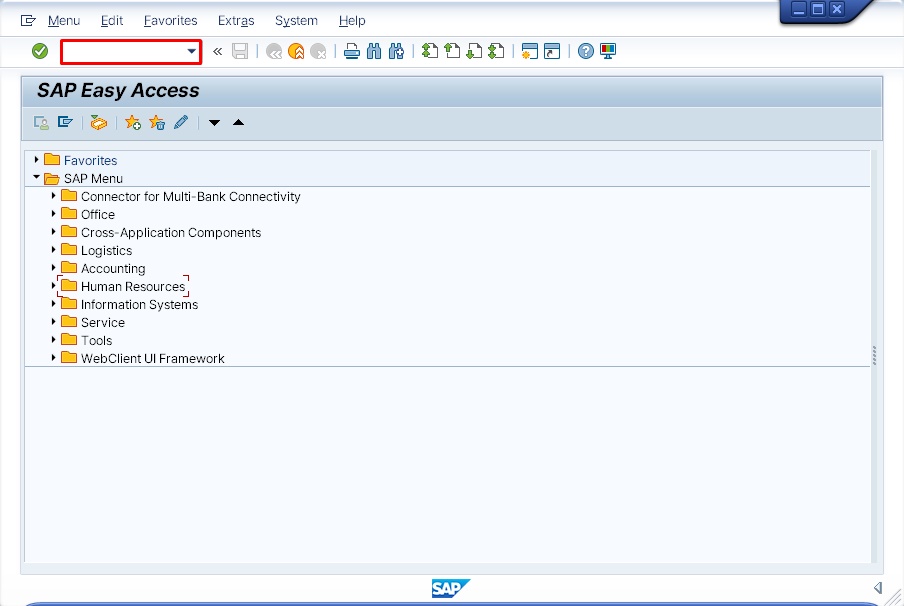 Figure 2. Location of the command field at the top of SAP GUI
Handy shortcut commands to know
Adding a prefix in front of the code makes it a lot more useful. Here are the ones worth knowing.
| Command | Function |
|---|---|
/n + code | Closes the current screen and runs the transaction |
/o + code | Runs the transaction in a new window (session) |
/n | Returns to the initial screen |
/nex | Ends all sessions (logs out) |
Table 1. Common T-code prefix commands
For example, /nMB52 closes the current window and jumps to the stock overview, while /oME23N keeps the current window open and opens the purchase order display in a new window.
SAP lets you run several windows (sessions) at once, so using /o well lets you handle two or three tasks side by side. It’s an especially useful command in day-to-day work.
Save your go-to codes as favorites
If typing the same code every time feels tedious, use SAP’s Favorites feature.
- In the left-hand Favorites menu, right-click → Insert Transaction
- Enter frequently used codes like MM01, ME21N
- Save
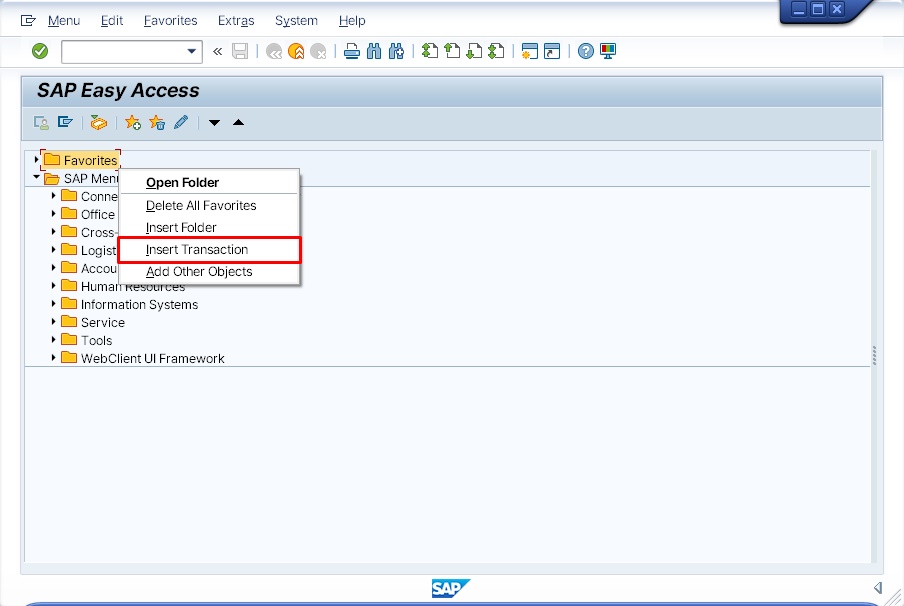 Figure 3. Adding frequently used T-codes to Favorites
Favorites are easier to manage when you organize them into folders by work area — grouping them under labels like “Purchasing,” “Production,” “Inventory” makes them easier to find. Just organizing your go-to codes this way makes everyday work noticeably lighter.
💡 Note: Every company also has its own custom-built “Z-codes” (like ZBOMPRINT). These aren’t part of the standard code set, but they’re often core to that company’s day-to-day work, so it’s worth keeping a separate list of them.
Rabbit’s Takeaway
SAP has a reputation for being difficult and rigid, but once you learn the rules, it’s actually a fairly logical, straightforward system. And T-codes sit right at the center of that.
Navigating through menus is something you do while you’re still learning — once you’re comfortable, you start working through codes instead, because it’s simply faster and more accurate. If there’s one line to sum up today’s post, it’s this: “SAP starts with T-codes, and ends with T-codes.”
And the last command before you leave for the day is /nex — it closes every session and takes you back to the logon screen. Just make sure to check that your work is saved first, because anything unsaved will be lost. 😎
Read more