
SAP dropdown key display: adding employee IDs to name tags
How to set SAP dropdown lists to show both code (key) and text together, and why you should turn this on.
Hi, this is Rabbit! 🐰
Say there are three coworkers named “John Smith” at your company. If someone just says the name, you have no idea who they mean. So naturally you start adding qualifiers: “John Smith from HR,” “John Smith from Dev,” or “employee ID 2025001.”
SAP dropdown lists have a similar problem. By default, you only see the text — names like “Domestic Sales Team,” “Overseas Sales Team.” When names are similar or the list gets long, it’s easy to lose track of which item you actually need.
The dropdown key display feature is like adding an employee ID to that name tag. Turn it on, and you see both the code and the name together, like [Z001] Domestic Sales Team or [Z002] Overseas Sales Team.
- SAP dropdowns show only text (names) by default.
- Turning on “display key in dropdown lists” shows the code (key) alongside the text.
- It’s a single checkbox under [Options] → [Interaction Design] → [Visualization 1].
Why you want the key visible too
A name like “Domestic Sales Team” shown on an SAP screen exists for humans to read. Internally, the system stores and manages the data using a code like Z001.
Because only the text shows by default, this creates three kinds of friction.
First, when several similar-sounding names exist, it’s hard to be sure which item to pick.
Second, when talking with a developer or IT staff, using names alone can cause confusion. Saying “payment term 0001 isn’t showing up” is far more precise than “immediate payment isn’t showing up.”
Third, new hires or anyone new to a role take longer to get a feel for SAP’s data structure.
==Just seeing the code and text together cuts down data entry mistakes and speeds up how quickly you get comfortable with the system.
Turning this setting on early, especially when you’re new to SAP, helps you pick up the code system naturally. Seeing “Domestic Sales Team is Z001” over and over means you’ll eventually recognize the code alone at a glance.==
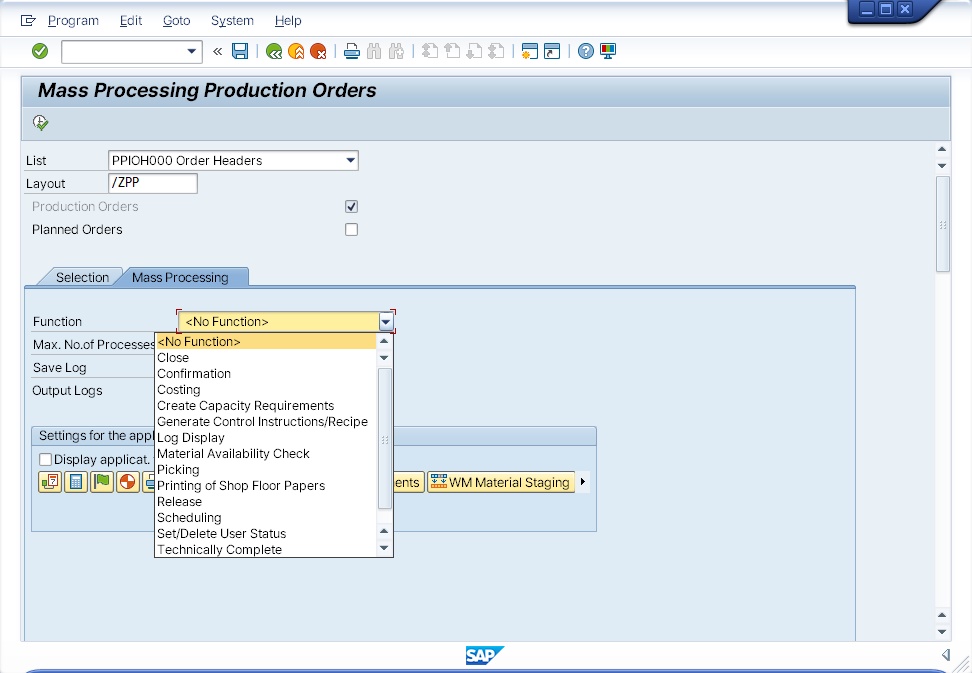 Figure 1. Default setting — the dropdown shows names only, so you can’t tell which code each is
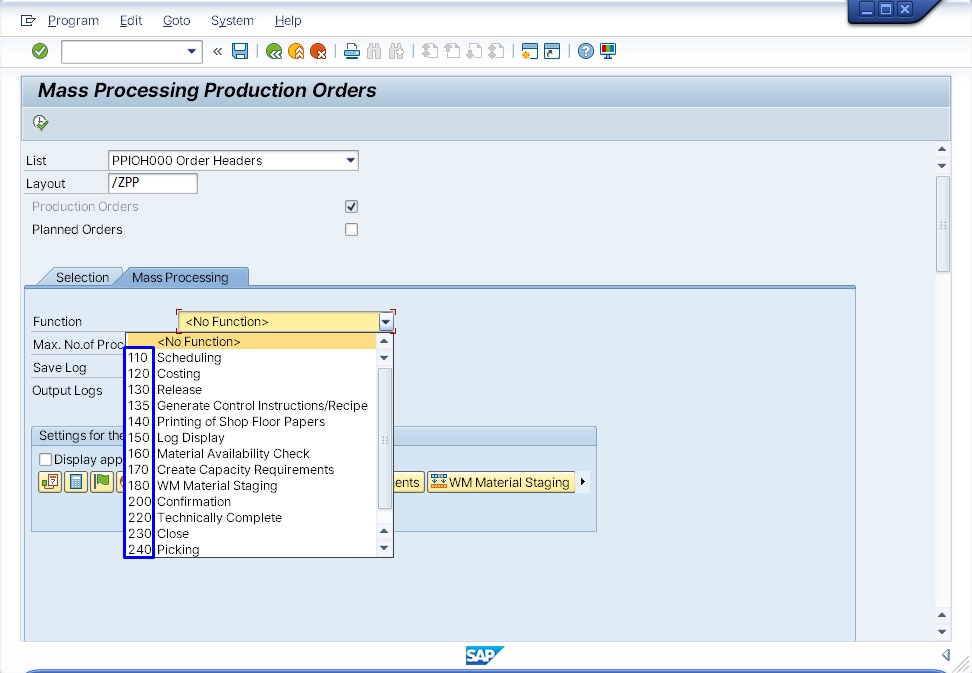 Figure 2. With key display on, the code and name appear together so you can identify each item precisely
How to set it up
Click the [Customize Local Layout] icon (the monitor-shaped one) in the top-right corner of SAP GUI, and select [Options]. You can also use the shortcut Alt+F12 → O.
In the options window’s left-hand tree menu, go to [Interaction Design] → [Visualization 1].
In the “Controls” section on the right, find [Show Keys in All Dropdown Lists] and check the box. Click [OK] or [Apply] to save.
From then on, opening a dropdown shows both the code and the name, like [Z001] Domestic Sales Team.
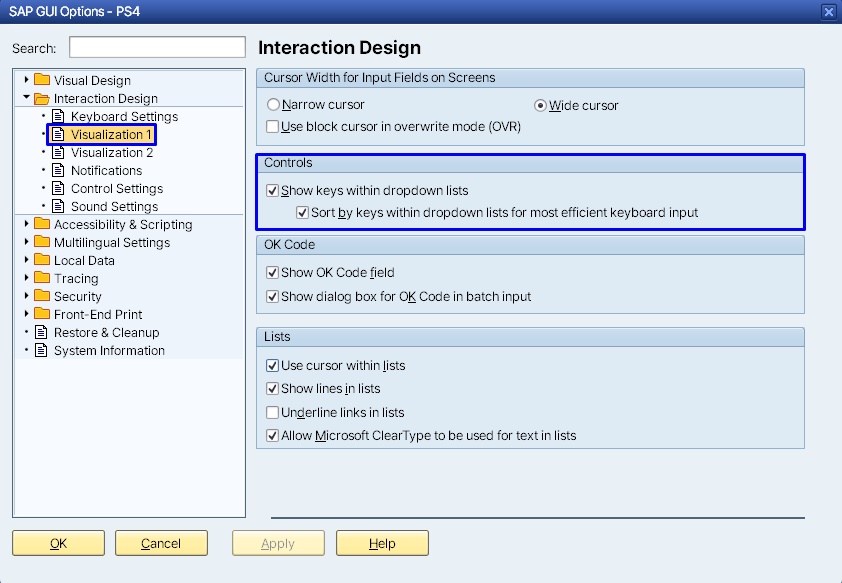 Figure 3. Check “Show Keys in All Dropdown Lists” under Options → Interaction Design → Visualization 1
Makes talking to developers and IT easier
This setting really pays off in one particular moment: when you’re reporting an error or asking a question.
Say “there’s an item missing from the payment terms field,” and IT has to ask you which item you mean. Say “the 0001 Immediate Payment item is missing from the payment terms field,” and they can find the cause right away.
That said, key display can occasionally cause more confusion than it solves — say, in environments with long or meaningless numeric codes, where seeing just the text might actually be easier to work with. If it’s not working for you, just uncheck the same box.
The system runs on codes, not text. Getting comfortable with codes helps you naturally understand the data structure behind the screen.
💡 Key point: This setting only applies to SAP GUI on your own PC. It doesn’t affect anyone else’s screen, and you’d need to set it up separately on any other PC where you open SAP.
Related settings: password asterisks and autocomplete
The SAP GUI options window has a few other settings worth knowing about that make day-to-day work smoother.
- [Visualization 2] → uncheck the password field placeholder character option: helps avoid account lockouts. Covered in detail in SAP password asterisks.
- [Local Data] → [History]: manage autocomplete history. Covered in detail in SAP autocomplete.
Checking and setting up all three at once saves you friction down the line.
⚠️ Note: Changes take effect immediately. If dropdown items suddenly look different, nothing about the functionality changed — only how it’s displayed.
Worth setting up together
Once you’ve turned on dropdown key display, there are two more settings you can configure in the same options window while you’re at it.
Go to the [Visualization 2] tab and turn off the password placeholder setting to make logging in smoother. Under [Local Data] → [History], you can clean up autocomplete history or turn the feature on and off.
Checking and configuring these three settings when you first start with SAP heads off a lot of unnecessary friction later. SAP has settings tucked away everywhere that cost a few minutes up front but save hundreds of hours down the road.
Rabbit’s Takeaway
Dropdown key display is a setting I especially recommend for anyone new to SAP. The unfamiliar codes might feel confusing at first, but they become second nature the more you see them.
The more experience you build with SAP, the more familiar the code numbers themselves become. It’s thanks to this setting that experienced practitioners naturally talk in codes on screen — “it’s Z001,” “it’s 0001.”
Once you go from reading only names to seeing the codes alongside them, the same SAP screen reads completely differently. Watching how the system distinguishes its data, right there on screen, is one of the fastest ways to really understand SAP. 😎
Read more