
SAP parameter IDs: saving your everyday defaults in one shot
A step-by-step guide to using SAP parameter IDs to save frequently entered values, like plant or person-responsible codes, as defaults.
Hi, this is Rabbit! 🐰
At your regular coffee shop, you order the same drink every day. “Iced americano, extra shot, light ice.” Same order yesterday, today, tomorrow. Now imagine if the shop just remembered your usual order and had it ready the moment you walked in.
SAP has something similar. Instead of retyping the plant code, production supervisor code, or MRP controller code every time you open a T-code, you can have the system pre-fill them for you. That’s the parameter ID.
- A parameter ID lets you save a default value for an SAP input field.
- Find a field’s parameter ID with the F1 key, register the value in your user profile, and you’re done.
- It’s the simplest SAP setting that cuts down on repetitive-entry mistakes and speeds up your work.
What is a parameter ID
Every input field in SAP carries a unique label behind the scenes. That label is called a parameter ID. For example, the parameter ID for the “production plant” field is WRK, the production supervisor field is FEVOR, and the MRP controller field is MRP.
Link this label to a value you always use in your user profile, and that value auto-fills every time you open a T-code containing that field.
It’s easy to confuse this with autocomplete, but they’re different. Autocomplete shows a list of values you’ve entered before; a parameter ID means the field already has a value in it the moment the screen opens.
In restaurant terms: if the head chef has to enter the same supplier code on a purchase order every single morning, saving that code as a default means it’s already filled in when the screen opens — you only change it on the rare occasion it needs to be different.
Finding a parameter ID (using F1)
To save a default value, you first need to know that field’s parameter ID. Finding it is simple.
Place your cursor in the field you want to lock a value into, and press F1. When the “Performance Assistant” window opens, click Technical Information (the hammer-and-wrench icon) in the top right. Look for the Parameter ID entry under the “Field Data” section.
For example, pressing F1 on the production plant field and opening technical information shows the parameter ID WRK. Make a note of that value.
💡 Key point: F1 is the key you should reach for first whenever you run into an unfamiliar field in SAP. It shows the field description, data type, and parameter ID all on one screen — it’s worth building the habit of checking there before asking a colleague.
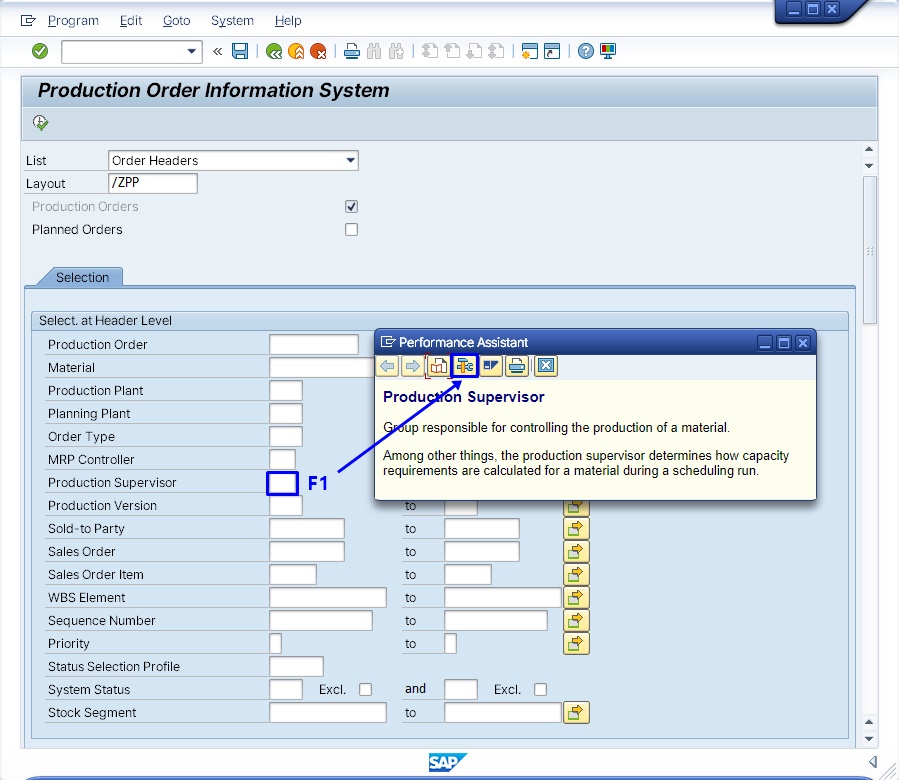 Figure 1. Place the cursor on the field you want to fix a value for and press F1 to open the field description
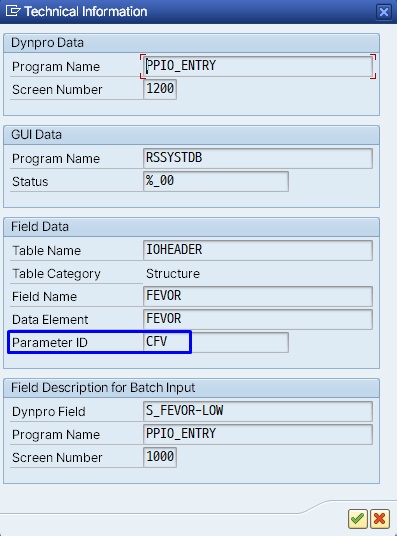 Figure 2. Open “Technical Information” in the help window to find the parameter ID under the Field Data section
How to register a parameter ID
Once you’ve found the parameter ID, register it in your user profile.
From the SAP top menu, go to System → User Profile → Own Data. Or just type SU3 into the T-code field.
Click the Parameters tab, and you’ll see an empty table. Enter two things here:
- Parameter ID: the value you just found via F1 (e.g.,
WRK) - Parameter Value: the value you always use (e.g.,
1000)
Save (Ctrl+S), and you’re done. Now, every time you open a screen that asks for a production plant, 1000 will already be filled in.
You can register several fields at once. Set up plant, production supervisor, and MRP controller together, and all three fields will auto-fill every time you open a T-code.
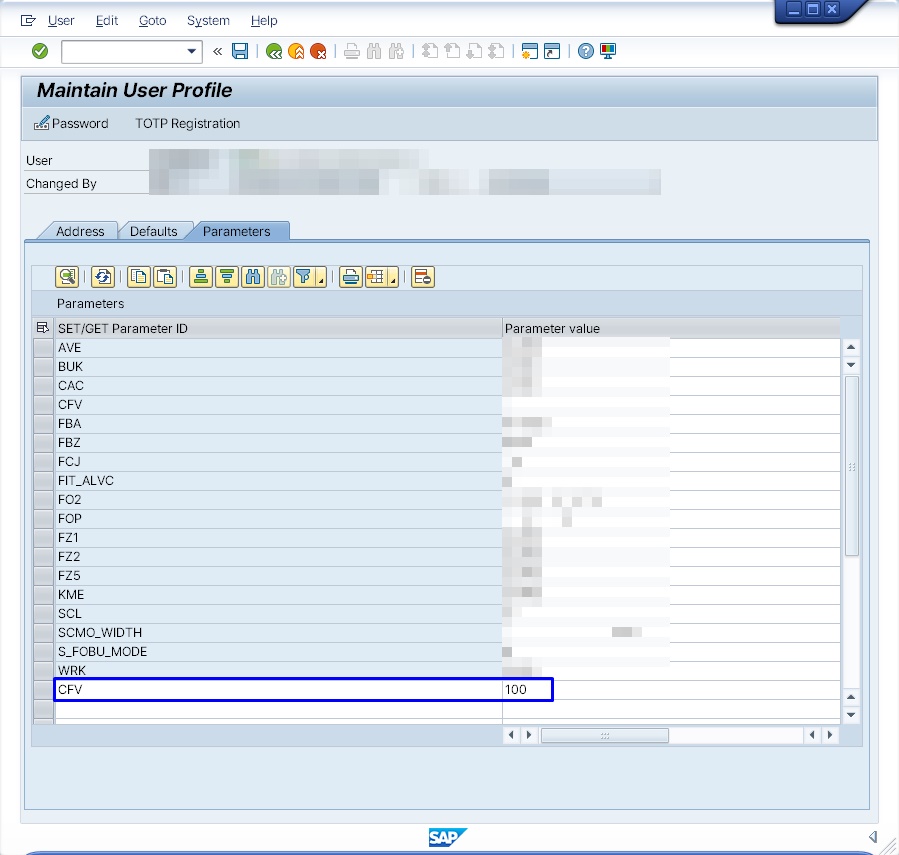 Figure 3. In SU3 → Parameters tab, enter the parameter ID and value, then save (e.g., CFV = 100)
Commonly used parameter IDs in practice
Here are a few frequently used parameter IDs for reference. Note that these can vary by system version and configuration, so it’s always best to check directly with F1.
WRK: PlantFEVOR: Production supervisorMRP: MRP controllerEKO: Purchasing organizationEKG: Purchasing group
Parameter IDs can vary depending on your SAP version and customization settings. The list above is for reference only — always confirm the actual value with F1. Registering the wrong parameter ID can cause a default value to end up in the wrong field entirely.
⚠️ Note: A parameter value is a default, not a fixed value. When you need to enter something different from the saved value, just type over it directly in the field. Also, parameter settings apply only to your own user ID and don’t affect anyone else.
How to reset a parameter ID
If a saved parameter value is no longer needed or needs to change, go back into SU3 (user profile), edit that row’s value, or delete the row entirely. Delete and save, and the auto-fill for that field is immediately turned off.
If your responsibilities change, or you take on a different plant, and you forget to update this setting, you’ll keep getting the wrong plant auto-filled in. Make it a habit to review your parameter values whenever your role changes.
Rabbit’s Takeaway
The parameter ID is one of those features that makes you think “why didn’t I know about this sooner?” the first time you discover it. Setting it up takes less than five minutes, but the time it saves adds up every single day after that.
It’s especially effective if you always work with the same code rather than switching between multiple plants or organizational codes. Fewer input mistakes, and you can jump straight into your next task the moment the screen opens.
The more you use SAP, the more naturally you’ll recognize when a parameter ID would help — usually the exact moment you think, “why do I have to type this in every time?”
If you’re just getting started with SAP, try opening three to five of your most-used T-codes and checking whether there’s a field you keep retyping. Press F1 on that field, find its parameter ID, and register it in SU3 — it’s the most effective SAP setup you can do today. 😎
Read more