
SAP autocomplete settings and deletion: how to cut down on input mistakes
A step-by-step guide to deleting individual entries, clearing all history, and turning off SAP's input history (autocomplete) feature.
Hi, this is Rabbit! 🐰
Type a single letter into your phone’s search bar and a stream of your past searches shows up. Convenient sometimes, but if an old typo or something you’d rather forget keeps showing up in that list, it gets annoying.
SAP’s input history (autocomplete) feature works the same way. It’s the feature where pressing the space bar in a T-code entry field or another input field brings up a list of previously entered values. Convenient, but if a wrong value from a one-off test keeps sitting in the list, or unnecessary entries keep piling up, it becomes more confusing than helpful.
Today, here are three ways to manage this autocomplete feature to your liking.
- SAP autocomplete is an input history feature that remembers values you’ve entered before and suggests them again.
- To delete a single entry, select it in the list and press Delete.
- To clear everything or turn the feature off, go to [Options] → [Local Data] → [History].
What SAP autocomplete is
Press the space bar once in a T-code entry field and a list of previously run T-codes appears; place your cursor in another field and press the space bar, and previously entered values show up. This is the input history feature that SAP GUI stores on your local PC.
In restaurant terms, it’s like a POS system remembering a regular customer’s usual order and showing it first in the order-entry screen. It’s convenient for quickly pulling up T-codes or values you use often.
That said, it remembers not just T-codes but also the user ID on the login screen and values entered into all kinds of fields, so without some upkeep, unnecessary entries pile up.
This history is stored on your local PC, not on the SAP server. If you’re on a shared PC used by multiple people, a previous user’s entries might show up on your screen — worth keeping in mind.
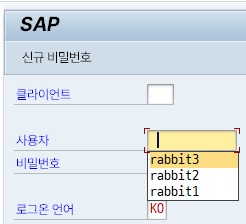 Figure 1. Pressing the space bar in the user ID field shows previously entered values as a list
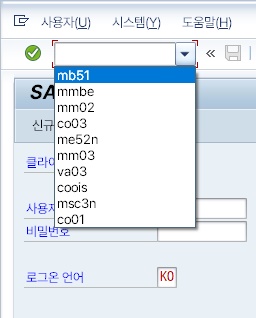 Figure 2. The T-code input field also lists previously executed codes
Deleting a single entry
If there’s only one entry you want to remove, this is the simplest method.
Bring up the autocomplete list in the field where you want to delete something by pressing the space bar. Use the up/down arrow keys to select the entry you want to remove, then press Delete.
It’s deleted immediately, with no confirmation prompt. There’s no undo if you delete the wrong one by mistake, so make sure you’ve selected the right entry with the arrow keys before pressing Delete.
This method only removes one entry at a time. It’s the fastest way to clean up a wrong T-code or a few values entered during testing. To delete multiple entries at once or turn off the feature entirely, you need to go into the options screen.
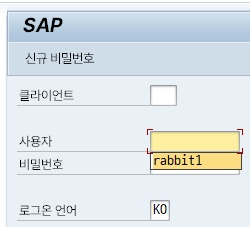 Figure 3. Select the entry to delete with the ↑↓ arrow keys, then press Delete to remove it instantly
Clearing everything or turning the feature off
There are two ways to open the options screen.
Click the [Customize Local Layout] icon (the monitor-shaped one) in the upper right of the SAP screen and select [Options]. Or press Alt + F12, then type O.
Once the options window opens, navigate to [Local Data] → [History] in the tree menu on the left.
From this screen you can do two things.
Turn the feature off: Change “History Settings” to Off and apply. From then on, no input values are remembered.
Delete all history: Click [Delete History]. All accumulated input history is cleared at once.
💡 Key point: This setting is local to your PC only. It doesn’t affect anyone else’s SAP screen, and logging in from a different PC keeps that PC’s history managed separately.
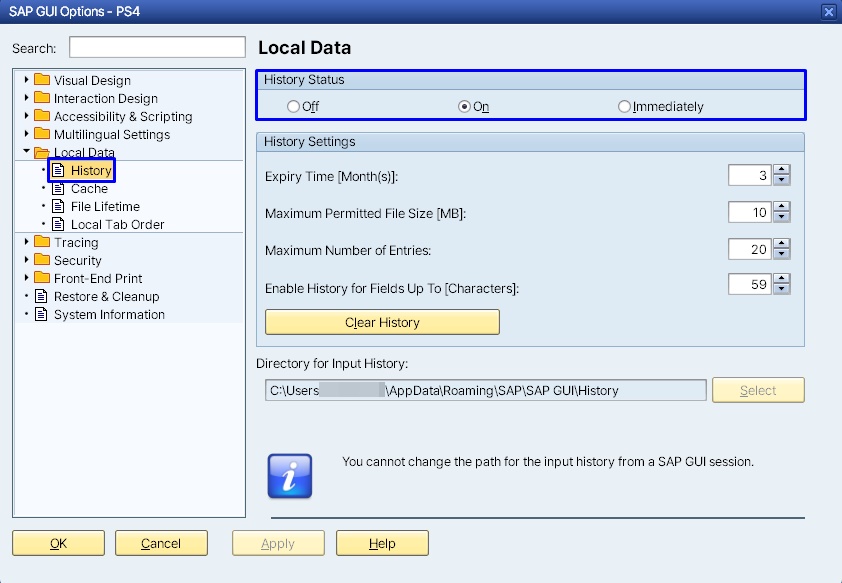 Figure 4. The Options → Local Data → History screen. Set to “Off” to disable the feature, or click “Delete History” to clear all records
Autocomplete vs. user parameters
These two features look similar, but they’re different.
Autocomplete (input history) remembers values you’ve entered before and shows them again. The list keeps changing depending on what you type.
User parameters register a fixed value that automatically fills a specific field every time. Instead of picking from a list, the screen opens with the value already entered.
It’s efficient to use both together: register frequently used fixed values (plant, person-responsible code, etc.) as user parameters, and use autocomplete to quickly pull up the rest.
Combining autocomplete and user parameters maximizes input efficiency. Managing fully fixed values through user parameters and situational values through autocomplete is the most effective approach.
The two features complement each other. Autocomplete remembers one-off values or occasionally changing codes that user parameters can’t cover. On the other hand, when the autocomplete list gets too long and cluttered, cleaning it up and locking frequently used values in as user parameters keeps the screen tidy.
⚠️ Note: The user ID on the login screen is also remembered by autocomplete. If you use SAP on a shared PC, clearing the user ID history after logging out matters for security.
Tips for keeping history clean
There’s a simple principle for keeping autocomplete history tidy: delete test or one-off values immediately after use. If you wait until the list gets long, you’ll have to go through and press Delete one entry at a time, which is tedious.
Lock in frequently used values as user parameters, and leave only occasionally used values in the autocomplete list — this keeps the list consistently useful. Using both features together significantly reduces input-related friction.
Rabbit’s Takeaway
Autocomplete is convenient and unnoticeable most of the time — until wrong entries keep showing up in the list and become a nuisance. Without knowing how to manage it, you end up putting up with a cluttered list.
Knowing that a single Delete key press removes one entry, and that the options window lets you clear everything or turn the feature off, means you can use autocomplete on your own terms.
If you’re just starting out with SAP, a good approach is to keep autocomplete on and use it as-is at first, then clean up unnecessary entries once some history has built up. 😎
Read more