
SAP font settings: reading the screen as clearly as a menu board
How to fix SAP's default font readability problems using D2Coding and Pretendard fonts. Covers everything from download to applying them in SAP GUI, step by step.
Hi, this is Rabbit! 🐰
Ever feel like the SAP screen you stare at every day is oddly hard on the eyes — like wearing glasses with the wrong prescription? The cause of that discomfort is surprisingly simple. It’s the font.
Today I’ll walk through how swapping fonts alone can meaningfully improve SAP’s readability. It takes about 5 minutes, and the difference is big enough that it’s hard to go back once you’ve made the switch.
- SAP’s default font (Gulim) makes it hard to distinguish numbers from letters, which tires your eyes quickly.
- D2Coding is recommended for the fixed-width font, and Pretendard for the variable-width font.
- Just install the fonts and set the two in SAP GUI’s options, and you’re done.
Why start with the font
SAP GUI’s default font is usually Gulim. Honestly, its readability doesn’t hold up by today’s standards, and it becomes a real problem especially when you’re working with data.
The number ‘0’ and the letter ‘O’ are easy to confuse, and the letter ‘l’ and the number ‘1’ look like twins. These small differences pile up and tire your eyes, and sometimes lead to real work mistakes. It’s a bit like working while wearing blurry glasses — no matter how good the underlying features are, they’re useless if you can’t see them clearly.
That’s why the font is the first thing to change when talking about readability. It’s swapping out old glasses for a new pair that actually fits.
Two pairs of glasses: D2Coding and Pretendard
Two fonts are recommended, depending on use — like a pair for coding and a pair for everyday use.
D2Coding — for fixed-width. A free font built by Naver for developers. Its biggest strength is clearly distinguishing characters that otherwise look alike. It really shines on fixed-width content like T-codes, numbers, and material codes. In SAP, set this as your “fixed-width font.”
Pretendard — for variable-width. A clean, widely used font these days, similar to Apple’s system font, giving screens a more modern feel. It makes general text of varying lengths — like material descriptions — comfortable to read. Set this as your “variable-width font” in SAP, and the once-stiff screen looks noticeably more polished.
Splitting these two fonts by purpose makes a visible difference in SAP’s overall readability.
Installing and applying (about 5 minutes)
1. Download the fonts
Grab both fonts first. Both are free and available on their official GitHub pages.
- D2Coding: github.com/naver/d2codingfont
- Pretendard: github.com/orioncactus/pretendard
2. Install the fonts
Unzip and install the downloaded files. The installation steps differ slightly between the two fonts.
D2Coding comes as a single .ttc file once unzipped. It bundles Regular and Bold together, so installing this one file applies both weights at once.
Pretendard requires navigating into the public → static folder inside the unzipped folder, where you’ll find several files. Select all with Ctrl+A, right-click, and be sure to choose “Install for all users.”
⚠️ Note: For Pretendard, you need to click “Install for all users,” not just “Install.” Skip this and the font may not show up in SAP.
3. Apply in SAP GUI
Now assign the new fonts in SAP.
- In the SAP Logon window, click the icon in the top-left corner to open Options.
- Go to Visual Design → Font Settings.
- Click Select to open the popup.
- Fixed-width font: D2Coding, size 11 or 12
- Variable-width font: Pretendard, size 11 or 12
- Click Apply, and you’re done.
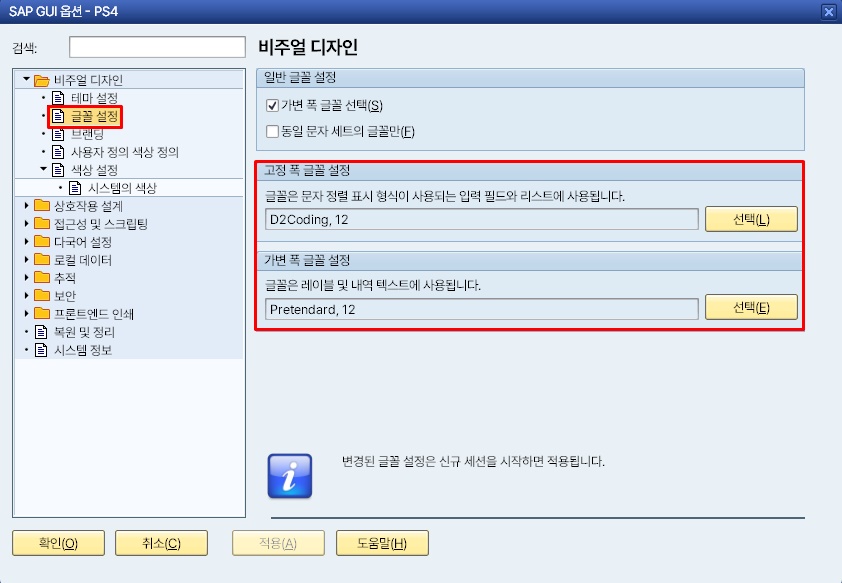 Figure 1. Fixed-width set to D2Coding, variable-width set to Pretendard
Rabbit’s Takeaway
“How much difference can changing one font really make?” is a fair question. But just making the screen you look at every day more comfortable cuts down on work stress, and small mistakes drop right along with it.
Knowing how to use good tools well is a skill in its own right. A 5-minute investment in sharpening your screen will make your everyday SAP work noticeably smoother. 😎
Read more